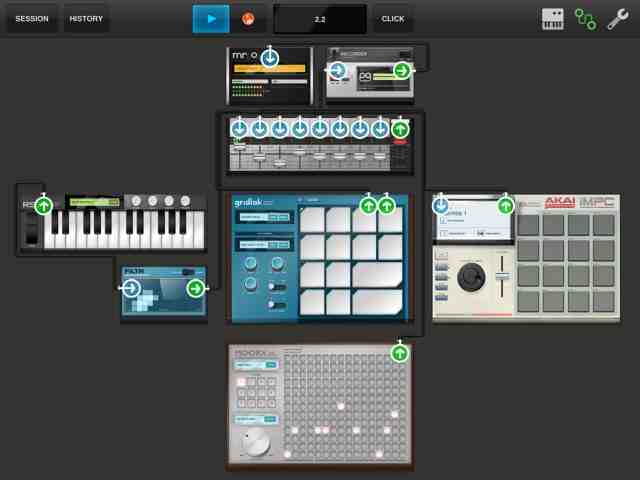
Tabletop is more than just a beat making or recording app, in a lot of ways, it is an environment. Imagine having a big card table and loads of equipment and unlimited cabling. Samplers, keyboards, drum machines, sequencers, effects, recorders, splitters, mergers, and more. There is also an in app store for add-ons, more instruments, effects, and utilities from and third parties. (I got the Akai iMPC. I heard good reviews and the features looked great. I really like it. I will cover it in a future post. $6.99 well spent.)
Getting started making a song in Tabletop is easy. When you start the app you can choose a genre based template or a blank table.
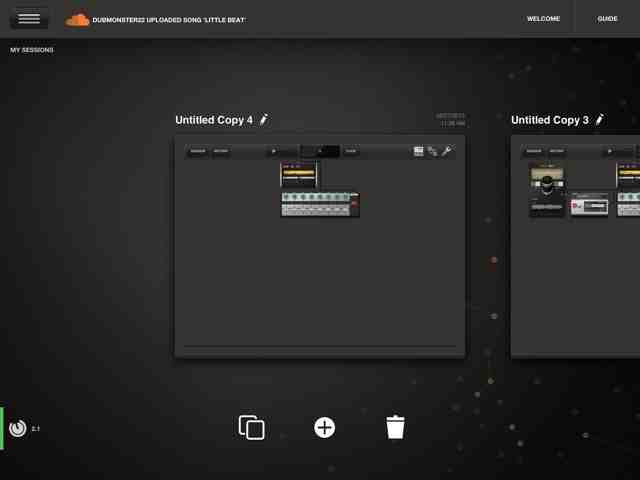
The blank template comes equipped with the audio out device, called 'mr o', and the mixer device plugged into it.
The empty space on the virtual table, around the mixer is there for you to drag and drop devices from the menu opened when you tap on the keyboard icon at the top right of the screen.
This menu pops up:
At the top of the list of choices is 'my device/device store'. I will start this track with some of the built in devices, then add a third party Tabletop Ready device that can be purchased from the device store or app store.
The first instrument I will drag onto the tabletop is the Gridlok sampler.
Tap on the Gridlok device to zoom in and operate.
Load a group of sounds for the pads by pressing the load button in the box right under the "gridlok" logo.
I chose the 'Eastern Swag' kit. You can change individual patches in the kit, save your own kits, and load your own samples.
Next I clicked the 'wrench' icon in the top right of the screen to see the session settings.
It defaults to 120 BPM when you start, so I tapped in a new tempo.
Now I was ready to record a basic looping drum beat. Tabletop defaults to a two-bar loop. You can sequence longer and more complex tunes, perform on the instruments, mixers, and effects live, and record audio of it all, but I will start this track with the default two bars and load one sample player running into a mixer running into an output device that sends sound to your speakers or headphones.
I tap the click button at the top for a count in and metronome, tap out a simple beat on the iPad touchscreen, and hit stop. I tap the zoom out button in the top left of the display. After zooming, I tap the session button at the top left and choose 'share on soundcloud'. I name the track, Tabletop_ex1_gridlok <<<---link


