Showing posts with label music. Show all posts

Saturday, June 8, 2013

How to make a track in Tabletop, Part 6 (vocals and live instruments)


Beats and virtual instruments are great, but what if you want to add vocals, guitar, or other outside odd Tabletop elements to your track?  The devices ' MagicMic' and 'Recorder' allow you to do just that.


Open the device menu and scroll down to find the 'MagicMic' input recording module.  Drag it into the Tabletop.


This device allows you to access the built in microphone in your iPad or an external mic.  Turn on the 'record arm' switch on the device, hit record and you are ready to go.  (if you want to hear what you are doing, you need to put headphones on.  The device won't allow you to monitor the input through the speakers.  This is done to avoid feedback.). The device will record you audio as a loop the same length as your pattern or beat you are working on.  You can record one pass and stop, or you can record an allow it to loop, layering your voice or other sounds on top of one another.


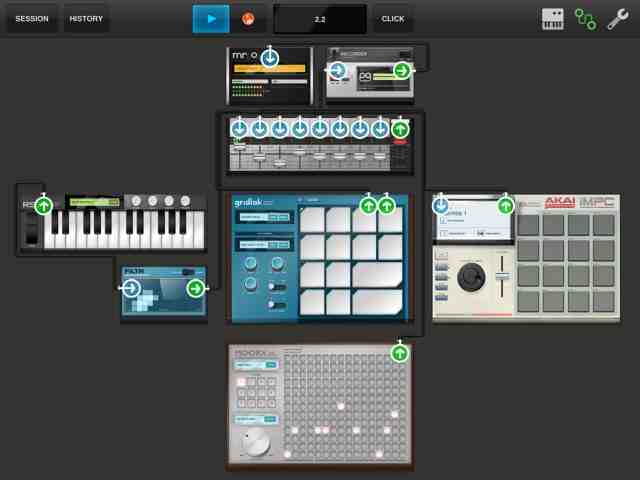
If you want to record a part that is longer than a loop, open the device menu and drag the 'Recorder' input module to the table, click the wiring button in the top right, tap the out arrow on the 'MagicMic' and drag to the input of the 'Recorder', then tap the output arrow of the 'Recorder' and drag to an input arrow on the Mixer'.


Tap the 'Arm/record' bottom and the 'hold' button on the recorder, turn on the 'monitor live' switch and turn off the 'rec arm'  button on the 'MagicMic'.  Now hit record and you can record live external sources like vocals, acoustic and electric instruments into tabletop.  In fact, you could make an entire track with just these input/recording devices!


Next post we will look at mix down and creating more complex arrangements (like making beat changes for verses and choruses, intros and outros, etc.), importing and exporting sounds, and more.


Tuesday, June 4, 2013

How to make a track in Tabletop, part 5

This post is part of a series on Tabletop for iOS.  Part one is here:


Adding effects to your instruments in Tabletop is easy.  Like adding an instrument or any other device, click the keyboard icon in the upper right corner.  From the device menu, select an effect device.  Drag it to the tabletop. 


 Now tap the wiring icon in the top right (it is next to the keyboard icon and looks like two circles with a squiggly line connecting them).  This will highlight all the inputs and outputs of the devices on the tabletop. 


Select the output arrow (pointing up) for the instrument device you want the effect applied to.  Drag the output arrow of the instrument to the input arrow (pointing down) of the effect.  In this example I have chosen the 'Filtr' effect to be applied to the 'RS3' synth.


 In the picture above, you can see the animation of a cable being dragged to connect the two devices.


Now the output of the 'RS3' is connected to the input of the 'Filtr', and the output of 'Filtr' is connected to one of the inputs on the mixer.  Play the 'RS3' and drag your finger across the display of the 'Filtr' effect.  You should hear your sound changing.  Cool.

In the next post, I will cover recording external instruments and vocals.  Then we will get to mix downs and more complex beats, songs and arrangements, how to perform or improvise live, and maybe the T-Pain effect.

This post is part of a series on Tabletop for iOS.  Part one is here:
http://makemusicfreedom.blogspot.com/2013/06/how-to-make-track-in-tabletop.html

Sunday, June 2, 2013

How to make a track in Tabletop, part 3


Continued from part 2

I listen to the two tracks together, bringing the volume back up on the 'Gridlok' track.  I tap the keyboard icon in the top right to open the device menu.  I select the 'RS3', a keyboard synth/sequencer, another free device included with Tabletop.  I choose a new patch from the load menu (in the window in the middle of the keyboard) hit record and overdub a simple synth part.


I zoom out and tap the mixer, turn down the other tracks, and solo the 'RS3'.  I zoom out again and tap the session button and select share to soundcloud.


How to make a track in Tabletop, part 1


Tabletop is more than just a beat making or recording app, in a lot of ways, it is an environment.  Imagine having a big card table and loads of equipment and unlimited cabling.  Samplers, keyboards, drum machines, sequencers, effects, recorders, splitters, mergers, and more.  There is also an in app store for add-ons, more instruments, effects, and utilities from and third parties.  (I got the Akai iMPC.  I heard good reviews and the features looked great.  I really like it.  I will cover it in a future post.  $6.99 well spent.)

Getting started making a song in Tabletop is easy.  When you start the app you can choose a genre based template or a blank table.  


The blank template comes equipped with the audio out device, called 'mr o', and the mixer device plugged into it.


The empty space on the virtual table, around the mixer is there for you to drag and drop devices from the menu opened when you tap on the keyboard icon at the top right of the screen.  

This menu pops up:

At the top of the list of choices is 'my device/device store'.   I will start this track with some of the built in devices, then add a third party Tabletop Ready device that can be purchased from the device store or app store.  

The first instrument I will drag onto the tabletop is the Gridlok sampler.

Tap on the Gridlok device to zoom in and operate.


Load a group of sounds for the pads by pressing the load button in the box right under the "gridlok" logo.


I chose the 'Eastern Swag' kit.  You can change individual patches in the kit, save your own kits, and load your own samples.

Next I clicked the 'wrench' icon in the top right of the screen to see the session settings.


It defaults to 120 BPM when you start, so I tapped in a new tempo.


Now I was ready to record a basic looping drum beat.  Tabletop defaults to a two-bar loop.  You can sequence longer and more complex tunes, perform on the instruments, mixers, and effects live, and record audio of it all, but I will start this track with the default two bars and load one sample player running into a mixer running into an output device that sends sound to your speakers or headphones.  

I tap the click button at the top for a count in and metronome, tap out a simple beat on the iPad touchscreen, and hit stop.  I tap the zoom out button in the top left of the display.  After zooming, I tap the session button at the top left and choose 'share on soundcloud'.  I name the track, Tabletop_ex1_gridlok <<<---link 
and upload it to my soundcloud site www.soundcloud.com/zen_oasis

Saturday, May 25, 2013

Free Beatmaking Software

The daw's, or digital audio workstations, that I talked about in the last post may be fine for some people, especially those who play instruments and sing. or are working with live musicians.  Some people want to make the tracks on their own and some kinds of music require background instrumentals for vocalists and beats.  This week I will be posting about some beatmaking software and making some example tracks.  I will start by covering Tabletop for iOS, a free beatmaker, sequencer, recording environment.

Wikipedia article on d.a.w.s for more information:
http://en.wikipedia.org/wiki/Digital_audio_workstation